
OneMira C1 Guide
Everything you need to set up your OneMira C1 — from unboxing to your first Mira-powered query.
Overview

Features
- Capture by side button, Auto-Capture on Launch, or scheduled work-hour windows.
- Two MEMS microphones with on-chip AI noise canceling and about 3 m (10 ft) close-range pickup.
- Records the far side of remote calls without taking over your mic — even with headphones on.
- Works fully offline; useful speech becomes local Context and audio is deleted after sync.
After setup, supported AI tools on your desktop can access this context via the MCP protocol. Use Mira through MCP tools, slash commands (such as /mira-search), or tool references (such as @mira_search) depending on your AI client.
/mira-search or @mira_search; simply ask in plain natural language, and capable agents will automatically discover and invoke the tools.Package Contents
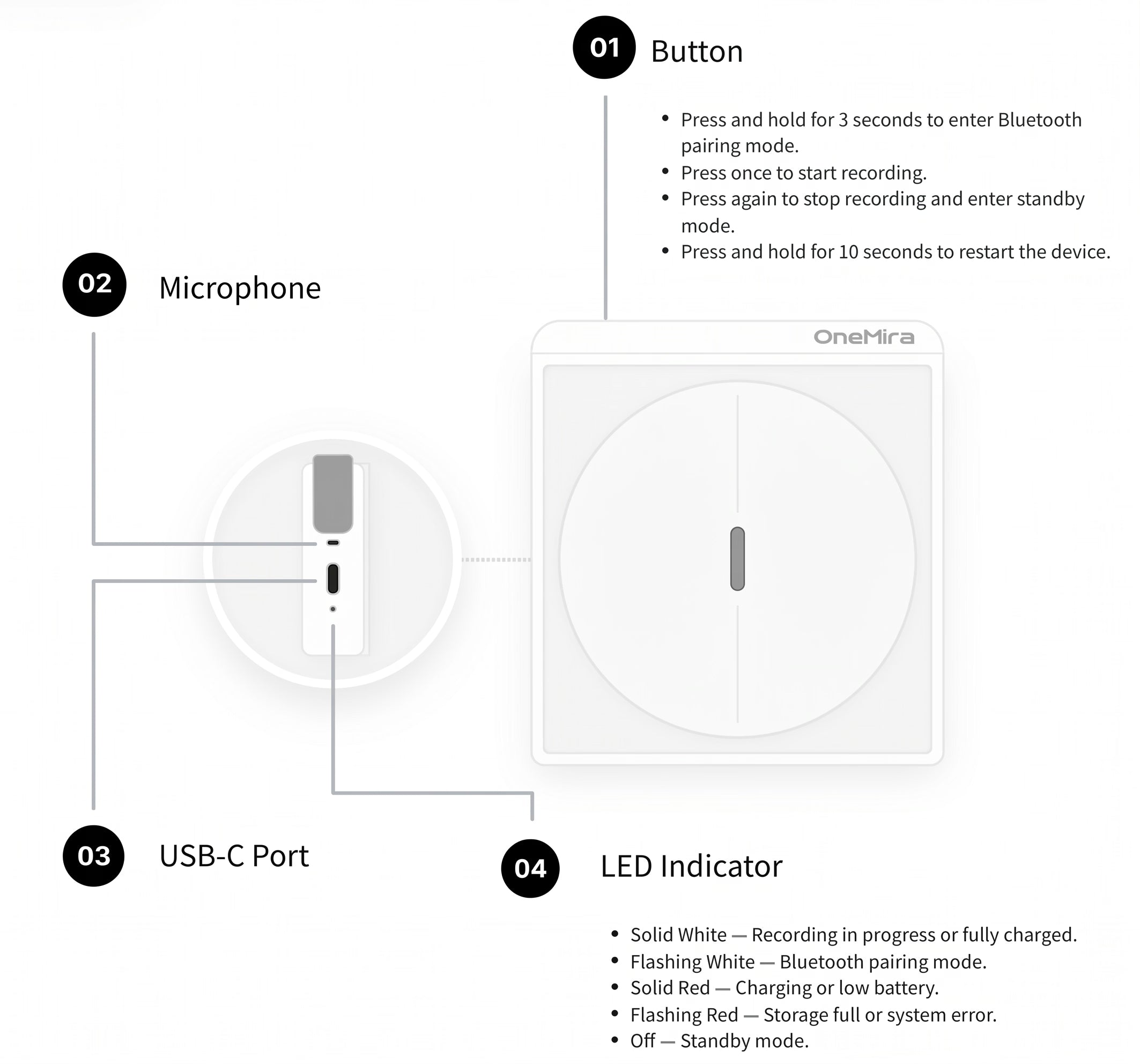
Button & Port
OneMira C1 has one main control, two microphones, a USB-C port, and visual feedback elements.
Quick Start
The desktop app walks you through every step. The entire process takes about 5 minutes.
Install the OneMira Desktop App
Download and install the OneMira desktop application on your Mac or Windows computer:
Activate Your Device
- Launch the OneMira desktop app.
- Press and hold the Multi-Function Button for 3 seconds until the LED indicator flashes white, indicating that Bluetooth pairing mode is active.
- Follow the instructions in the app to activate your device.
Deploy the Transcription Engine
Local ASR model runs on the paired desktop app; no internet is needed after the initial download..
- Choose your transcription language: Auto-Detect, Chinese, or English..
- Click "Deploy Transcription Engine". The download is typically 100-500 mb depending on the model..
- Wait for the progress bar to reach 100%. The app shows real-time download logs and a desktop illustration with the deployment percentage.
Connect AI Tools
MCP (Model Context Protocol) is how your AI tools can call local context from the physical world. Claude, Cursor, Codex, Claude Desktop, and MCP-compatible tools can use the same local files, CLI workflow, and MCP interface..
- The app automatically scans your computer for supported AI tools.
- Follow the app's AI access flow to write the configuration into each detected tool.
Daily Use
Slow, visible turntable rotation indicates active recording.. Scroll through each mode below to see how the device behaves.
Recording
Press the side button once to start recording — the white LED lights up and the turntable spins. Press again to stop and return to standby. Click the button below to see it in action.
Low Battery
When battery drops below 10 % during recording, the LED switches from white to red. Charge before the next session.
Charging
Plug in USB-C while idle — a red LED stays on during charging. When fully charged, the LED turns white.
MCP Configuration Manual
OneMira exposes local conversation context data to your AI tools via the Model Context Protocol (MCP). Below you will find the CLI command reference to automatically manage your integrations, and details to manually configure various editors.
Automatic Setup (CLI Tools)
The OneMira desktop application includes the mira Command Line Interface (CLI) to easily manage MCP client settings on your computer.
Manual Configuration Guide
If your AI client is not auto-detected, or if you prefer to edit settings yourself, choose your tool from the complete list below to view the default paths and configuration.
{
  "mcpServers": {
    "mira": {
      "command": "mira",
      "args": ["serve", "--mcp"]
    }
  }
}Exposed MCP Tools Reference
Once connected, your AI assistant will automatically discover and have permission to call the following tools:
| Tool Name | Description |
|---|---|
mira_search | Search both meeting transcripts and vault/wiki notes. |
mira_sessions | Browse meeting sessions (list, show details, or query active session). |
mira_segments | Read exact transcript segments from a specific session. |
mira_stats | Get meeting statistics (session counts, total duration, open tasks). |
mira_guide | Describe your intent in natural language; returns recommended tool calls. |
mira_wiki_list | List summaries of all local wiki pages (sessions, topics, people). |
mira_wiki_read | Read a specific wiki page by path (e.g. topics/pcb-design). |
mira_wiki_write | Create or overwrite a wiki page by path with frontmatter. |
mira_wiki_delete | Delete a wiki page by path and update indexes. |
mira_wiki_backlinks | List wiki pages that link back to the specified page. |
mira_wiki_sessions | List session IDs linked to a wiki page. |
mira_session_markdown_range | Overwrite a session's markdown body up to a given segment index. |
Context Wiki & Vault
Once OneMira captures a session, Mira processes the transcript and synthesizes the useful parts into local Wiki files (a Markdown vault) that your AI editors can search, link, and build upon.
Directory Structure & Page Kinds
Your wiki is compiled as a local directory structure representing your knowledge base. Select a folder or file to explore its purpose and view a sample markdown structure:
Double-Bracket Wikilinks & Block Anchors
Pages in the vault are interconnected using standard Markdown and double-bracket references:
- Wikilinks (
[[Target]]): Cross-link pages by title or alias (e.g.[[projects/miralamp]]) to establish conceptual links. - Block Anchors (
^block-id): Use stable anchors at the end of lines to cite specific meeting decisions or quotes directly. - Auto-Aggregated Blocks: Bounded by
<!-- mira:managed -->comments. The system automatically inserts co-occurring sessions and links during background compilation.
Core Workflows (How to Use)
Integrate OneMira into your daily workflow with three essential tasks:
- Ingest (Auto-Update): When a session is finalized, OneMira automatically parses speakers, updates projects, people, and topics, and appends to
journal.md. - Query (Ask AI): Ask your AI client (Cursor, Claude Code, etc.) questions about your meetings. It will query the OneMira MCP server to read your vault files, search context, and compile answers citing specific pages.
- Lint (Maintain Health): Periodically run health checks to identify ghost links (pointing to nonexistent files), resolve tag drift, and triage reports awaiting promotion.
[[target]]), block anchors (^block-id), and automated relational aggregation.Troubleshooting
Device not found during pairing
Make sure you long-press the side button for 3 seconds to enter pairing mode, then follow the app pairing flow.until the app and device show pairing status. If the device does not respond, ensure it has power. Also ensure Bluetooth is enabled on your computer and keep the device within about 5 meters during pairing and sync..
Bluetooth permission denied
Open your operating system's Bluetooth privacy settings, ensure the OneMira app has permission, then restart the app and try scanning again.
ASR model download fails
Check your internet connection. The model download is typically 100-500 mb depending on the model.. Click "Retry Deploy" to resume. The download will pick up where it left off.
AI tool not detected after setup
Some AI tools need to be restarted after config changes. Close and reopen the AI tool, then call Mira again through its MCP tools, slash commands (such as /mira-search), or tool references (such as @mira_search) depending on your AI client. You can also go to Settings → AI Access → Rescan to verify the injection status.
Device connected but no transcription
Ensure capture is active in the app. Press⌘ R in the app or short-press the side button to start capture. Also check that the transcription engine has been deployed in the setup flow.
How to update firmware
Firmware update details are shown in the desktop app when an update is available..
FAQ
Which AI tools does it work with?
Any MCP client. Every C1 capability is a CLI command exposed over MCP, making it natively compatible with an ever-growing list of tools including: * **AI Editors**: Cursor, Windsurf, Zed, Trae, VS Code (Copilot), Continue, Qoder Desktop * **Agents & CLI**: Claude Code, Cline CLI, Antigravity, Gemini CLI, Goose, Hermes Agent, Kiro, OpenClaw, OpenCode, Codex, CodeBuddy, Qoder CLI, Warp * **Desktop Assistants**: Claude Desktop CLI-first by design—it drops straight into your existing workflow.
How is it different from other cloud AI recorders?
Summaries, recaps, mind maps—every recorder does those. The difference is what happens next. They stop at their own built-in summarizer; C1 hands the conversation to your own agent—Claude, Cursor, Codex—which takes it much further: a real spec, a working doc, a ticket, shipped code. And it is all 100% local, with no subscription and no quota.
Where is my data stored? Does anything go to the cloud?
Everything stays on your own computer as plain-text files. Speech recognition, transcription, and speaker labeling all run locally, and the audio is deleted after it syncs. Nothing is uploaded—and because there is no shared cloud, your conversation can never end up on someone else's account, or theirs on yours.
Does it need internet or Wi-Fi?
No. C1 has no Wi-Fi—it connects to your computer over Bluetooth or USB-C, and all processing is offline. The only time the internet is involved is when your own AI tools use it.
How does my agent get to the captured context?
It pulls it from C1 over MCP. Ask your agent in plain language—it finds and calls the right command and works from the context C1 has stored. C1 is the store; your agent does the work.
Does C1 edit my AGENTS.md or project files?
No. C1 is a passive store—it never reaches into your repo. Your agent, or a scheduled loop you set up, reads from C1, and you decide what gets written into your AGENTS.md, rules, or docs.
Do I need to learn any commands?
No. Just tell your agent what you want in plain language; it discovers and calls the right command on its own. Nothing to memorize.
Can I use it across multiple machines or agents at once?
Yes. C1 is one shared context store—run Claude on one machine and Codex on another, and both connect to the same C1 over MCP and work from the same context.
Can it capture online meetings from Zoom, Microsoft Teams, or Google Meet?
Yes, absolutely. OneMira C1 is designed to capture remote calls and online meetings seamlessly. Even if you are wearing headphones, it captures both your voice and the audio from the far end of the call (requires macOS 14.2+ on Mac for Core Audio process tap), solving the common recording limitations of online meeting platforms.
Will it take over my mic or audio devices?
No. C1 never occupies your computer's mic or audio inputs—your calls and other apps keep working normally while it records.
How good is the audio in a noisy room? Does it tell speakers apart?
C1 uses a dedicated AI chip with hardware noise cancellation to keep voices crisp and clear even in a noisy room, and it labels who's speaking automatically.
Can it record the other side of a remote call, even with headphones?
Yes. C1 doesn't take over your computer's audio, so even in a remote meeting with headphones on, it still captures the far end—you keep the whole conversation. On Mac this needs macOS 14.2+.
How do I start recording?
One press to start, or set scheduled start/stop windows so it's already recording before you remember to.
Can it cover a big conference room?
C1's effective pickup is about 3 m—it is designed as a close-range desk device. It is at its best for desk chats, small-room discussions, and calls; a large hall is not what it is built for.
How is my privacy protected?
By design. C1 is completely offline, all processing happens on your own computer, and audio is deleted after sync. Your voice never leaves your machine.
Do I need consent to record?
It is good practice to let others know before you record—laws vary by place, so check if you're unsure. A simple line works: "Mind if I run my AI notes tool so I don't miss anything? I'll share the notes with you after."
Is it compliant with GDPR, HIPAA, etc.?
Because everything is processed locally with no external transmission, sensitive data never leaves your machine—which makes privacy-heavy work far easier to keep compliant with regimes like GDPR and HIPAA. Compliance ultimately depends on how your organization handles data overall.
Is there a monthly fee or a minute quota?
No subscription, no quota. Capture as much as you want, forever, at zero cost—you just use the AI tools you already pay for.
Battery, storage—how long can it record?
A 1250mAh battery gives up to 30 hours of continuous recording and 60 days of standby. Storage is 32 GB, split between a 15 GB circular buffer for temporary Opus audio files and 17 GB for text snapshots. Because older synced audio is automatically cleared when the 15 GB buffer fills up, it will never run out of space.
What systems does it support?
macOS 12+ and Windows 10+. It connects over Bluetooth 5.4 (LE Audio) or USB-C.
Could my private recordings ever leak to another user's account due to a cloud glitch?
No. Traditional cloud-based AI recorders upload your audio to a shared cloud database, exposing you to the risk of account-mixing bugs or configuration leaks. OneMira C1 is structurally immune to this: everything is processed locally on your own computer, and audio is deleted immediately after syncing. There is no shared cloud database, making cross-user leaks physically impossible.
Why is there no subscription fee or transcription limit? Can I really use it infinitely?
Yes. Cloud-based recorders charge ongoing subscription fees to cover their server hosting and API usage costs. Because OneMira C1 performs speech-to-text and transcription locally on your own machine's hardware, there are no ongoing cloud transcription server bills. We pass this structural advantage to you—a true once-off purchase with unlimited transcription, zero subscriptions, and zero quota anxiety.
Do I have to use a proprietary app or cloud portal to search and organize my data?
No. Traditional recorders lock your transcripts inside their closed database or laggy proprietary app, turning your archive into a "data swamp." OneMira C1 stores all transcripts as simple, clean markdown and plain-text files directly on your local filesystem. You have full ownership: search, grep, edit, and version-control your notes using your preferred editor (like VS Code or Obsidian) and feed them directly to your AI.
How is OneMira C1 different from traditional app-based cloud recorders?
While traditional cloud-based recorders upload your files to their servers for processing and charge subscription fees for extra minutes, OneMira C1 runs speech recognition and transcription entirely locally on your own machine. OneMira C1 requires zero subscriptions, has no monthly limits, and guarantees that your voice never leaves your computer. Additionally, C1 integrates natively with local developer workflows like Cursor and Claude Desktop over MCP (Model Context Protocol) using local plain-text/markdown files, whereas traditional recorders are centered around their own closed mobile/web apps.
How does C1 fit into my "Loop Engineering" workflow?
Your coding agent only knows what is written in your AGENTS.md, system rules, and codebase. But the most valuable rationale—why you rejected an architecture, how a key bug was solved, or what the user actually wants—happens out loud at your desk and never gets written down. C1 captures this spoken layer. You can set up a scheduled shell loop to pull the day's local transcripts and merge the decisions directly into your AGENTS.md and rule files, making your agents starting tomorrow much smarter.
How is OneMira C1 different from subscription-gated AI recorders?
Unlike typical subscription-gated recorders, which process your recordings on cloud servers (e.g., AWS) and operate on a subscription model, OneMira C1 is a 100% local context device with no subscription and no transcription limits. Furthermore, because cloud recorders operate on a shared database, they carry risks of cross-user data leakage. OneMira C1 is structurally immune to this as no data is sent to the cloud. Finally, C1 is built specifically for developer and builder workflows (supporting MCP, git versioning, and local markdown files), whereas typical recorders are general-purpose voice notes tools.
Can I pipe C1 data directly into local CLI tools?
Absolutely. Because OneMira C1 is built CLI-first and outputs standard markdown files, you can pipe them directly into ripgrep, write scripts to parse them, or use our zero-dependency local MCP server (scripts/onemira-mcp.js) to expose them to any LLM-based command-line tool. No closed APIs, no webhooks, no rate limits.
Where do you ship?
OneMira C1 currently ships to addresses within the United States for the first launch. Additional markets are planned later.
What if I decide C1 is not for me?
You can request a return within 30 days of delivery for any reason. Returned items must be in good, functional condition and include all original packaging, cables, accessories, and documentation.
What warranty is included?
OneMira C1 includes a 1-year limited warranty against manufacturing defects from the date of delivery.
Can OneMira C1 capture Zoom or Teams calls when wearing headphones?
Yes. OneMira C1 does not hijack your computer's mic or audio devices, enabling it to capture the far-end speaker during virtual meetings on Zoom, Microsoft Teams, and Google Meet even when you are wearing headphones (requires macOS 14.2+ on Mac for Core Audio process tap).